Engineering · Oct 28, 2026
How an AI agent builds a scene from one photo
Claude built the Garden Loft on our home page from one AI-generated image. Here’s how Lucky Engine’s MCP server and Lucky Procedural let an agent turn a photo into a room with real geometry and working joints.

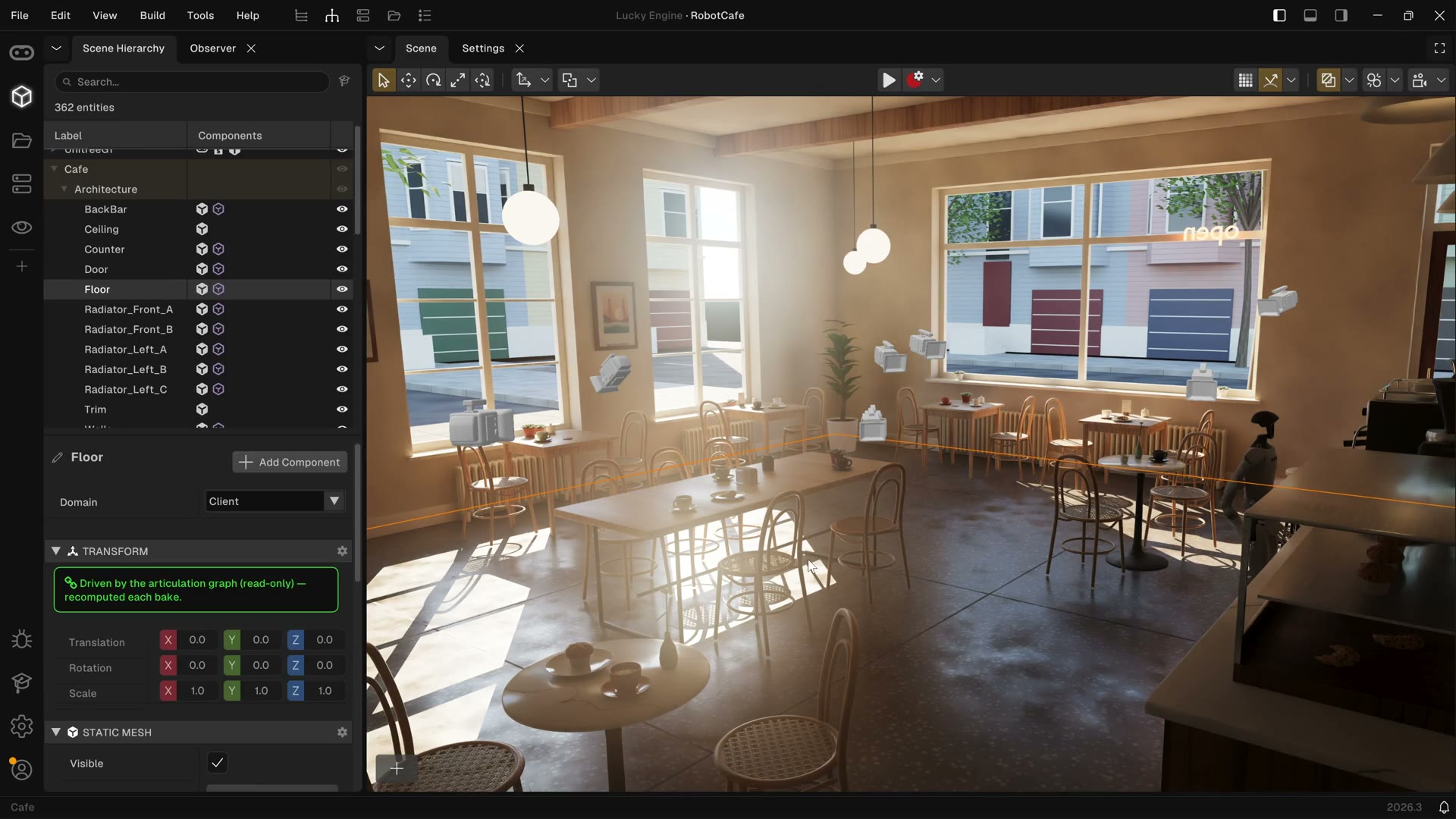
The Garden Loft on our home page began as one image, generated in Gemini, and one prompt. Claude built it in Lucky Engine with Lucky Procedural, our procedural tools: 57 procedural graphs placed as 107 objects, lit by 41 lights, with a Unitree G1 walking through the room.
The prompt
This is the prompt we gave Claude, using Opus 5.5. The one cut is a reference to an internal tool:
Can you please create the scene in this photograph in the Lucky Engine. Procedurally generate any interactive elements using mujoco physics. Match the lighting and procedurally generate the textures as best you can [...]. Add a G1 robot to the scene and have him walk around. Assume the parts of the scene you can’t see so it makes sense. Good luck! Update me with screenshots of everything as you go.
How the agent drives the editor
The Lucky Engine editor runs an MCP server, the open protocol AI assistants use to work with other applications. It starts with the editor, listens only on your own machine at http://127.0.0.1:19331/mcp, and works on whichever project the editor has open. For Claude Code, connecting takes one command:
claude mcp add --transport http lucky-engine http://127.0.0.1:19331/mcp
Any assistant that supports MCP over HTTP can connect to the same address.
The server exposes its tools in groups. An agent reads the scene with get_current_scene, search_entities and get_entity_properties, builds it with create_entity, add_component and set_entity_property, and turns an object into a free-moving MuJoCo body with make_mujoco_dynamic_body. It can write C# scripts and compile them with build_script_assembly, which sends compile errors back to the agent so it can fix them. capture_viewport_screenshot, capture_scene and capture_scene_camera render the scene from the editor view, from any position or through a Camera entity, so the agent can look at what it built and compare it with the photo. The editor also ships with its own reference notes, which an agent reads with search_docs and read_doc before it writes code.
For the Garden Loft, Claude wrote the room as Python functions that each produce a procedural graph, then drove the editor’s scene-authoring tools. authoring_import brought the graphs into the project, scene_authoring created the entities in batches of up to 64, authoring_cooks waited until every graph had finished building, and authoring_save saved the scene.
Every scene edit an agent makes goes on the editor’s undo stack, so Ctrl+Z reverts it like one of your own. Files work differently: graphs, scripts and materials the agent creates are written to disk straight away, so keep the project under version control. The server has no password and only accepts connections from programs on the same computer.
Lucky Procedural
Lucky Procedural is the name for our procedural tools. They’re all built on procedural graphs: node graphs edited in one graph editor inside Lucky Engine. A graph’s type decides what it makes. A Geometry graph builds a mesh, a Simulation graph builds one that can change while the scene plays, a Motion graph drives a robot’s joints, and Animation and Audio graphs drive characters and sound. In 2026.2, motion, animation and sound graphs were separate file types with their own editors.
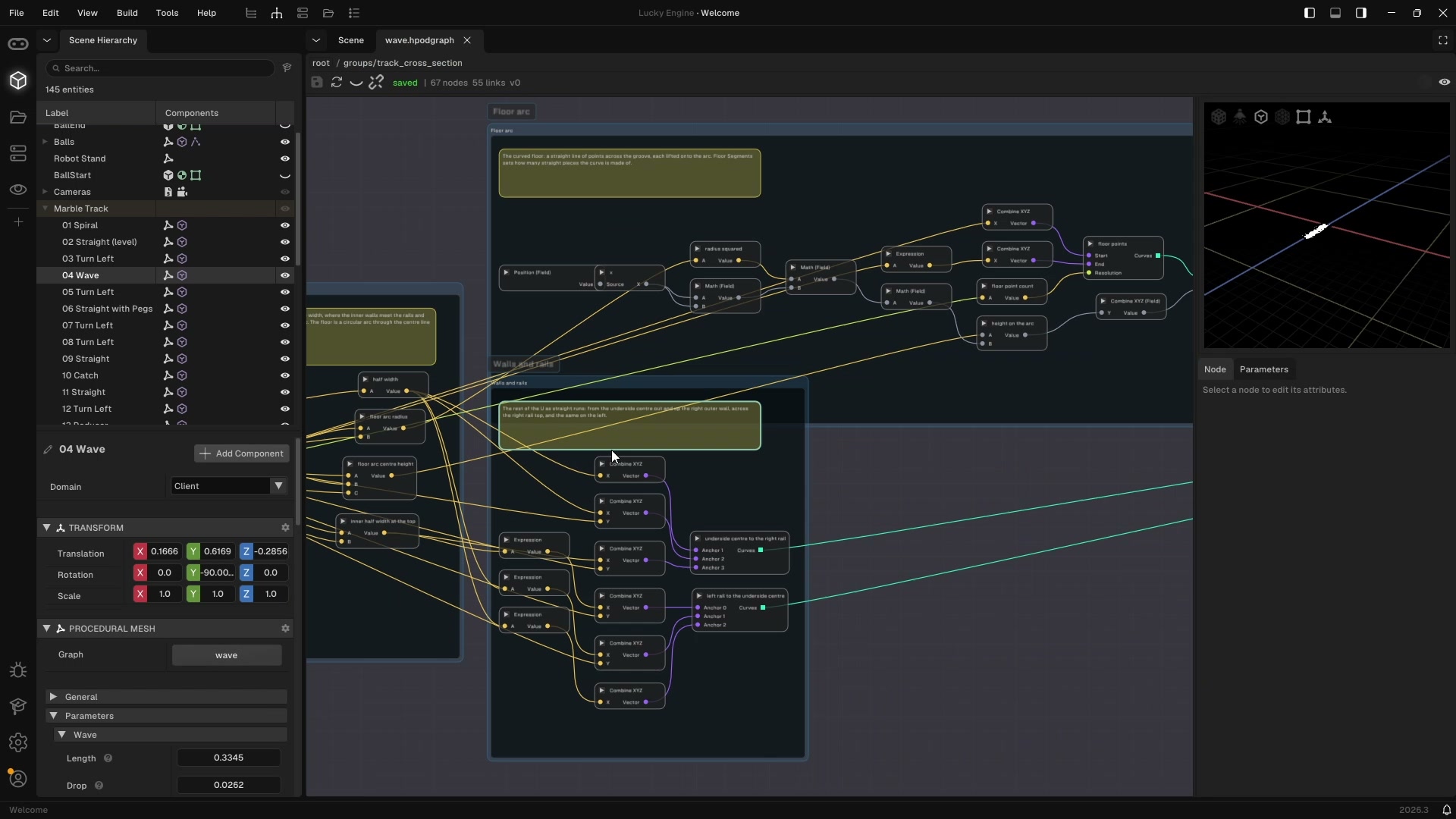
A track piece from the marble run in the Welcome project that ships with Lucky Engine, open in the graph editor. Its exposed parameters, Length and Drop, sit in the Inspector on the left.
Procedural Mesh
A geometry graph goes on an entity through the Procedural Mesh component. The quickest start is a primitive, such as a Procedural Cube, Cylinder or Torus, whose shape settings sit in the Inspector. Promote to Graph turns the primitive into a graph of its own, and its shape settings become the graph’s first parameters.
Parameters are how one graph becomes many objects. Any Value node, or any unlinked input on another node, can be exposed as a parameter, and a name with a slash, like Bevel Edge / Offset, becomes a folder in the Inspector. Every placed copy of a graph can override any parameter for itself, and copies that don’t override a value follow the graph’s default, including later changes to it. The loft’s 107 objects come from 57 graphs, so many of them are copies of one graph placed more than once.
A graph can also generate lights. Each one appears as a child entity with an ordinary light component, and a placed copy can edit it without touching the graph.
Procedural Materials
A graph generates its own material slots and fills them with the materials it makes, so a surface can change with the same parameters as the shape under it. A placed copy can assign a different material to any slot, and on a graph with jointed parts, each body has its own material slots. Materials also carry the near-infrared settings that simulated lidar and depth sensors read.
Physics and joints
A graph that produces collision geometry takes part in MuJoCo physics. The editor adds a MuJoCo Mesh Collider to the entity and keeps it in step with the graph, and each placed copy can switch on convex decomposition for its collision meshes.
A graph can also describe several bodies connected by joints. The editor builds a child entity for each body, with its MuJoCo joints and colliders, plus a <body>_Render entity that shows that body’s part of the mesh. An Articulation Preview gives every joint a slider, in meters for sliding joints and radians for hinges, so you can check the motion before pressing Play. Joint and collider inputs can be promoted to parameters too, so their settings can differ from one copy to the next.
In the loft, everything a robot or a person could move is a MuJoCo body. The teak credenza has three drawers on slide joints, with damping 8 and friction loss 1.2, and each drawer’s front, floor, sides and back collide, so a drawer can hold things. Its two doors swing on hinges limited to 0 to 1.6 radians. The oven door is hinged too, and the glass globe pendants and hanging planters hang from hinges at the ceiling, so they sway. Loose objects are free bodies.

The G1 walks past the teak credenza, whose drawers and doors are MuJoCo joints built by its graph.
Physics is set up when you press Play, so a procedural mesh’s collision and bodies stay as they were at that moment until the next Play. Before the scene starts, the editor finishes building every graph in it.
Lighting and rendering
The loft is lit by 41 lights, all placed directly in the scene: 29 area lights for the window daylight, the skylight and the ceiling uplights, 10 point lights for the practicals, including one under each glass globe, plus the sun and the sky.
Changing a scene from code
The Procedural Mesh component is PodComponent in C#. A script fetches it once:
private PodComponent? m_Mesh;

protected override void OnCreate()
{
    m_Mesh = GetComponent<PodComponent>();
}
SetParameter(name, value) then changes one instance’s parameter with the same effect as editing it in the Inspector. It takes the parameter’s full name, folder included, such as "Straight / Length", and has overloads for float, int, bool and Vector3. ResetParameter(name) hands the value back to the graph’s default. Both return true when the change is applied, and a refused call writes the reason to the console. While the scene plays, only render-only procedural meshes accept changes, so anything with collision or joints is changed between runs.
Try it
Download Lucky Engine, open a project, connect your assistant with the command above and give it a photo. Two tips from our docs: ask the agent to read the built-in reference before it writes C#, and to take a screenshot after placing objects so it can check its own work. The full tool list is in the MCP guide, and the graph editor is covered in Procedural Graphs.